Teach your AI assistant how you work, then use Compass AI for current information
and your preferred AI tool for planning, writing, and clearer next steps.
Created by Paulo Serna
San Francisco real estate advisor at Compass
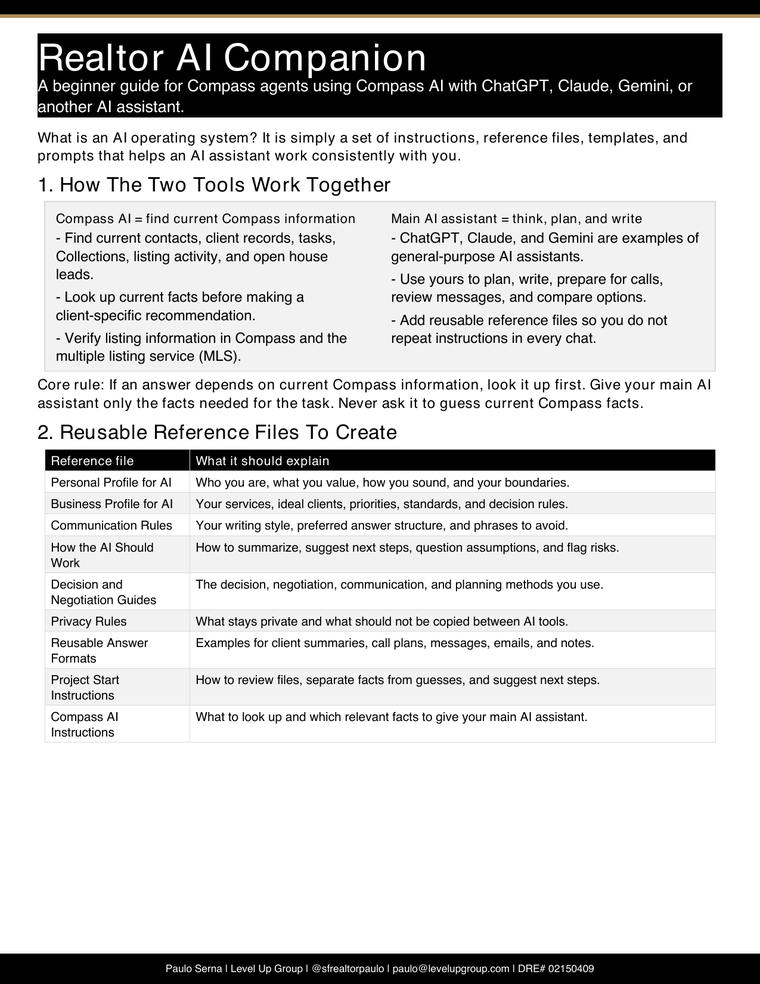
Contact and client records, tasks, listings, saved properties in Collections, open house leads, and other information stored in Compass.
→
Your Main AI Assistant
Think, Plan, and Write
Use ChatGPT, Claude, Gemini, or another AI chat tool for planning, writing, call preparation, message review, and clearer next steps.
Your first 10 minutes
Start with one real assignment.
You do not need to build the entire system today. Complete these three steps and improve it as you use it.
1
Choose one real project
Use a current client, property, call, message, pricing analysis, or task you repeat.
2
Create your first three reference files
Start with your personal profile, business profile, and communication rules. The examples below will guide you.
3
Use the Project Start prompt
Add the facts or documents for the assignment, then let the prompt organize the work and identify what is missing.
Core rule
If the answer depends on current Compass information, look it up first.
Copy only the facts needed for the task into your main AI assistant. Do not ask
ChatGPT, Claude, Gemini, or another AI tool to guess a client record, listing status,
task, or recent activity that should be checked in Compass.
A few useful terms
What the common AI words mean
You do not need technical knowledge to use this guide. These are the only terms you may see more than once.
Large language model (LLM)
The technology behind AI chat tools such as ChatGPT, Claude, and Gemini. In this guide, we simply call it your AI assistant.
Prompt
The instruction or question you type into an AI tool. A clear prompt tells the AI what you need and how you want the answer organized.
Project
A dedicated space in an AI tool where you keep instructions, files, and conversations for one client, property, or type of work.
AI operating system
A practical set of instructions, reference files, templates, and prompts that helps your AI assistant work consistently with you.
Teach the AI how you work
Create a small set of reusable reference files
A reference file is a simple document that explains who you are, how your business works,
how you communicate, and what rules the AI should follow. Add these files to a project so
you do not have to repeat the same instructions in every chat.
Your reference-file progress0 of 9 completed
Choose a status on each file. Your progress stays saved in this browser.
Open any file to compare a blank template with a completed sample.
Start in About 10 Minutes
Choose one real client, property, pricing analysis, disclosure review, or repeated task.
If your AI tool offers Projects, create one. If it does not, start a new chat.
Add the reference files you already have. Starting with your business profile and communication rules is enough.
Add the client or property documents needed for this specific task.
Copy the Project Start prompt below and paste it into your AI tool.
Review the answer and correct anything the AI misunderstood.
Build the Full System Over Time
Keep a separate project or chat for each client, property, or important assignment.
Add your standing instructions and reusable reference files.
Add current client, property, or transaction documents in clearly named groups.
Use the Project Start prompt whenever you begin important work.
Correct guesses and clearly label anything that is still unknown.
Keep important decisions, unanswered questions, and next steps in the same project.
Copyable instructions
Choose the prompt that matches the work.
A prompt is simply an instruction you give the AI. Replace any words inside square brackets
with your information, paste the prompt into your AI tool, and add the notes or documents it needs.
Save prompts that work well so you can use them again.
Move current Compass information
Carry verified facts from Compass AI into your main AI assistant.
This is a simple copy-and-paste step. Ask Compass AI for the current information, copy only what
is relevant, then tell your main AI assistant exactly what you want it to create.
1
Ask Compass AI
Ask for the current client or contact record, listing activity, tasks, saved properties in Collections, or open house lead notes.
2
Copy only what is needed
Leave out private financial, legal, or personal information unless it is necessary for the specific task.
3
Paste it into your AI assistant
Ask for a summary, call plan, email draft, message review, strategy options, or a clear note to save back in Compass.
Maintain it
Keep your instructions and reference files useful.
A few minutes of cleanup after real work is enough. The goal is to save what worked, correct what did not,
and remove old information before it causes confusion.
After Important Work
Save the final summary and any important decision.
Capture the prompt that worked best.
Note any client question or concern that comes up repeatedly.
Add useful wording to your communication rules.
Weekly Review
Review active clients and open questions.
Identify follow-up commitments.
Choose the single most important result for the week.
Remove old guesses or outdated information from project summaries.
Monthly Cleanup
Archive closed projects.
Turn repeated work into a reusable template.
Remove prompts that no longer match your business.
Update your examples for moving facts out of Compass AI.
Safety and quality rules
Use AI to think more clearly, not to replace professional judgment.
Do
Separate confirmed facts from your interpretation.
Clearly label guesses and assumptions.
Point out information that is missing.
Keep the final decision with the client.
Use calm, specific client language.
Do Not
Invent facts or current Compass client details.
Overstate certainty or promise outcomes.
Create fake urgency or use fear.
Expose sensitive information unnecessarily.
Provide legal, tax, lending, insurance, inspection, appraisal, title, or engineering conclusions.
When information conflicts, trust it in this order
Current documents for this client, property, or transaction
Your current client or property notes
Your written process instructions
Your business profile for AI
Your personal profile for AI
Your communication rules
Your decision and negotiation guides
General real estate knowledge
The AI's guess or default answer
Downloads and sharing
Use the PDF for a quick introduction and this site for the actual work.
A Short Guide You Can Share
Send the PDF to introduce the idea. Send this website when an agent is ready to set up the system,
copy useful prompts, and keep the information current.